How to Print Your Club's Aircraft Schedule as a PDF

Updated: Sep 18
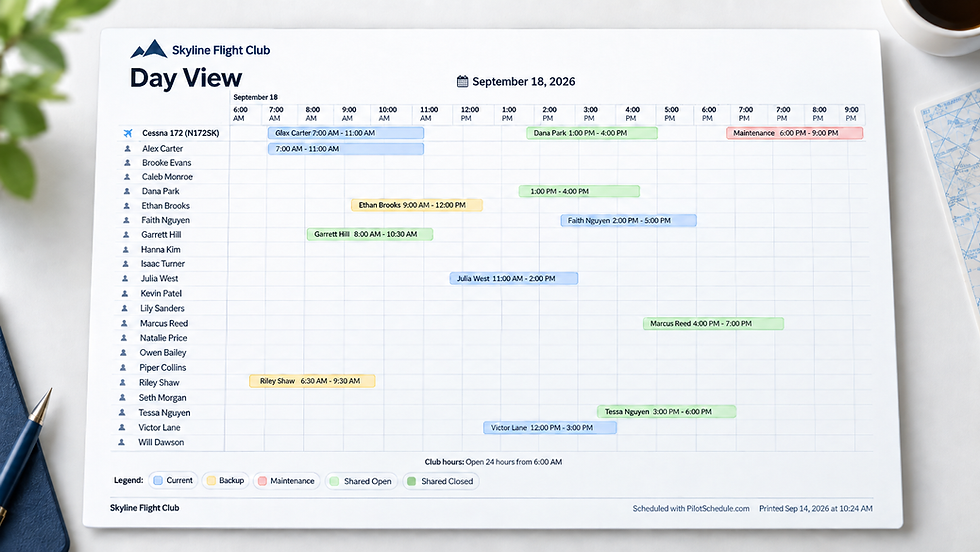
Most clubs and small schools still keep a paper schedule somewhere. It is taped inside the FBO door, clipped to the dispatch desk, or sitting on the counter under the fuel log. Members glance at it on the way to the ramp. The line crew uses it to know which aircraft are going out. The chief instructor checks it over coffee.
That sheet used to mean a screenshot, a spreadsheet export, or a browser print that cut the day off at 2 PM and dropped half the columns. As of this week, PilotSchedule prints a proper one. Here is how it works and how clubs are using it.
Export PDF on Every Schedule View
All three schedule views now have an Export PDF action:
Day View prints the whole club day for every aircraft, instructor, and resource on the schedule.
Pilots View prints the schedule for the pilot you have selected, with their name on the sheet.
Resources View prints one resource across the period you are looking at.
Each one produces a landscape page sized to the club day. If you have more aircraft than fit on one page, the rows continue onto the next page instead of shrinking to an unreadable size. Reservation colors carry through, so the printed sheet reads the same way the screen does.
The file is named after the view, the date, and the time it was exported. That sounds like a small thing until you have a folder of six files all called "schedule.pdf" and no idea which one was current.
Three Ways Clubs Use the Aircraft Schedule
The Wall Sheet
The most common use. Print Day View first thing in the morning and post it where members walk past. Anyone without their phone handy can see what is flying and what is open. Because the export is timestamped, a member can tell at a glance whether the sheet is from this morning or last Tuesday.
If your club runs late into the evening or has set itself to Open 24 hours, the full day is on the sheet. Nothing gets cut off at the right edge.
The Dispatch or Line Crew Copy
FBOs and schools with a front desk print Day View for the person managing dispatch and the ramp. They can see which aircraft is due out next and who is scheduled on it without logging into anything. Keeping a printed copy also means the desk keeps working if the Wi-Fi does not.
The Instructor's Week
A CFI who works at more than one location can print their own Pilots View for the week and carry it. It shows their students, their aircraft, and their times on one sheet. Several instructors we have talked to keep it in the flight bag next to the sectional.
How to Export
Open the schedule view you want to print.
Set the date, and for Pilots View or Resources View, select the pilot or resource.
Click Export PDF.
Save or print the file that downloads.
That is the whole process. There is no setup, no print template to configure, and nothing to enable in Club Settings. If your club is on PilotSchedule, the button is already there.
A Note on What the Printed Sheet Is For
The PDF is a snapshot. The schedule on the screen is the schedule of record. If a member books a slot after you print, the sheet on the wall will not know about it, which is why the timestamp in the file name and on the page matters.
Most clubs treat the printed copy as a morning reference and the app as the source of truth, and that works well.
For the same reason, we would not recommend using the printed sheet to resolve a dispute over who had the aircraft. The schedule log in the app records who booked what and when, and that is the record to look at.
Get the Sheet on Your Wall
If your club is already on PilotSchedule, open Day View and look for Export PDF.
If you are still running the schedule out of a spreadsheet or a group text, a free account takes a few minutes to set up and the export is included on every plan, starting with Solo at $19 a month.